How it works
Four steps. Most of the work is describing your business once — after that, adding a second bot takes minutes, because the LINE connection, the brand and the knowledge are already there.
Before you start
Three things, and only the first one is unavoidable.
Free to create at the LINE for Business site, and yours to keep. If you already have one with friends on it, use that — the friends are the whole point.
Connecting requires an administrator of the Official Account. If that is not you, have them ready for a two-minute step.
Only if you want reminders or campaigns. Replies are free; pushes are not. The pricing page estimates which plan you need.
Register your brand
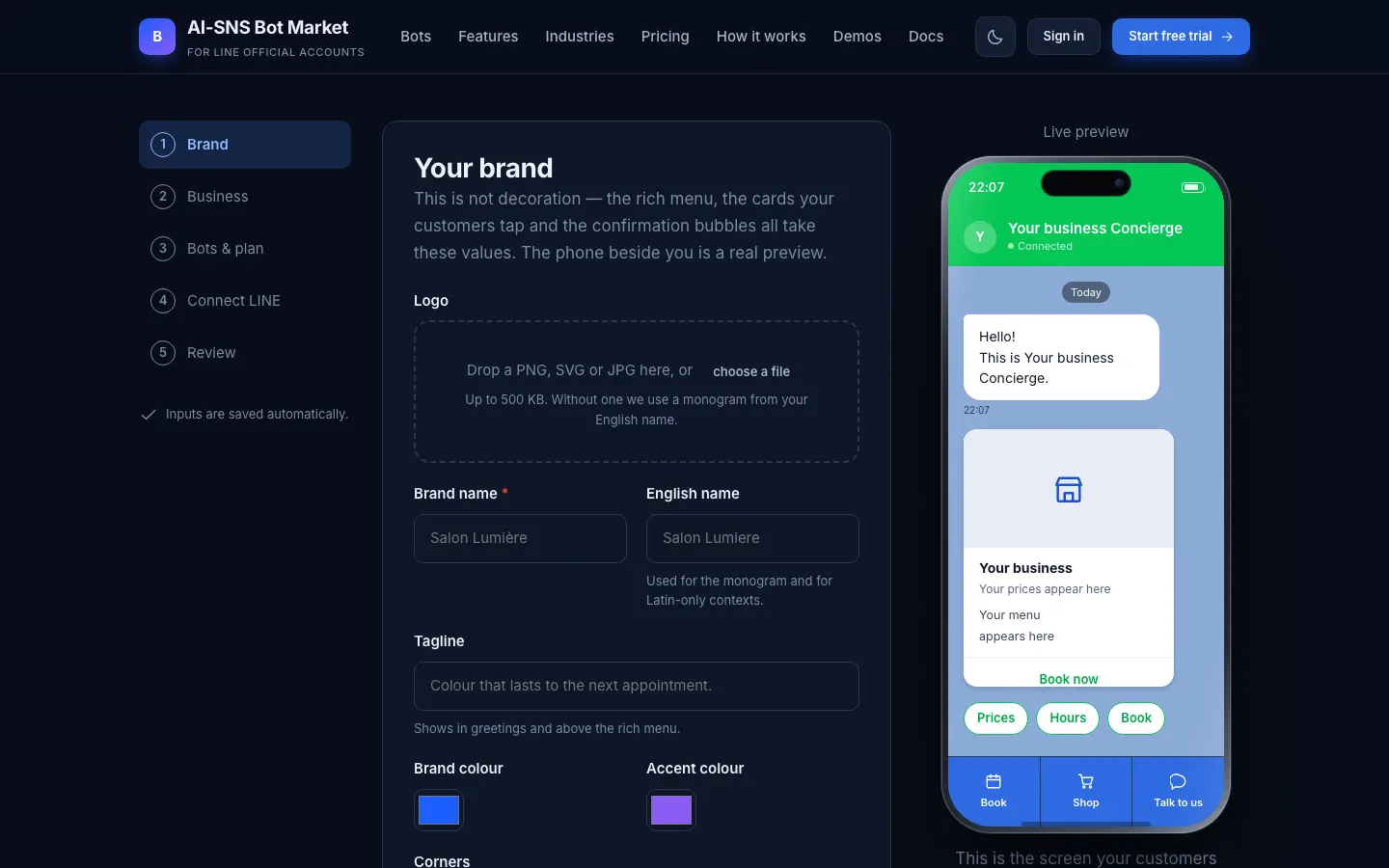
Upload a logo, pick a brand colour and an accent, choose how round the corners are, light or dark, and a typeface. The preview beside the form is a real LINE screen, and it repaints as you type. Everything autosaves, so you can leave and come back.
This is not decoration. The rich menu image, the Flex cards your customers tap and the confirmation bubbles all take these tokens, so getting them right here means never restyling anything later.
Describe the business, choose bots
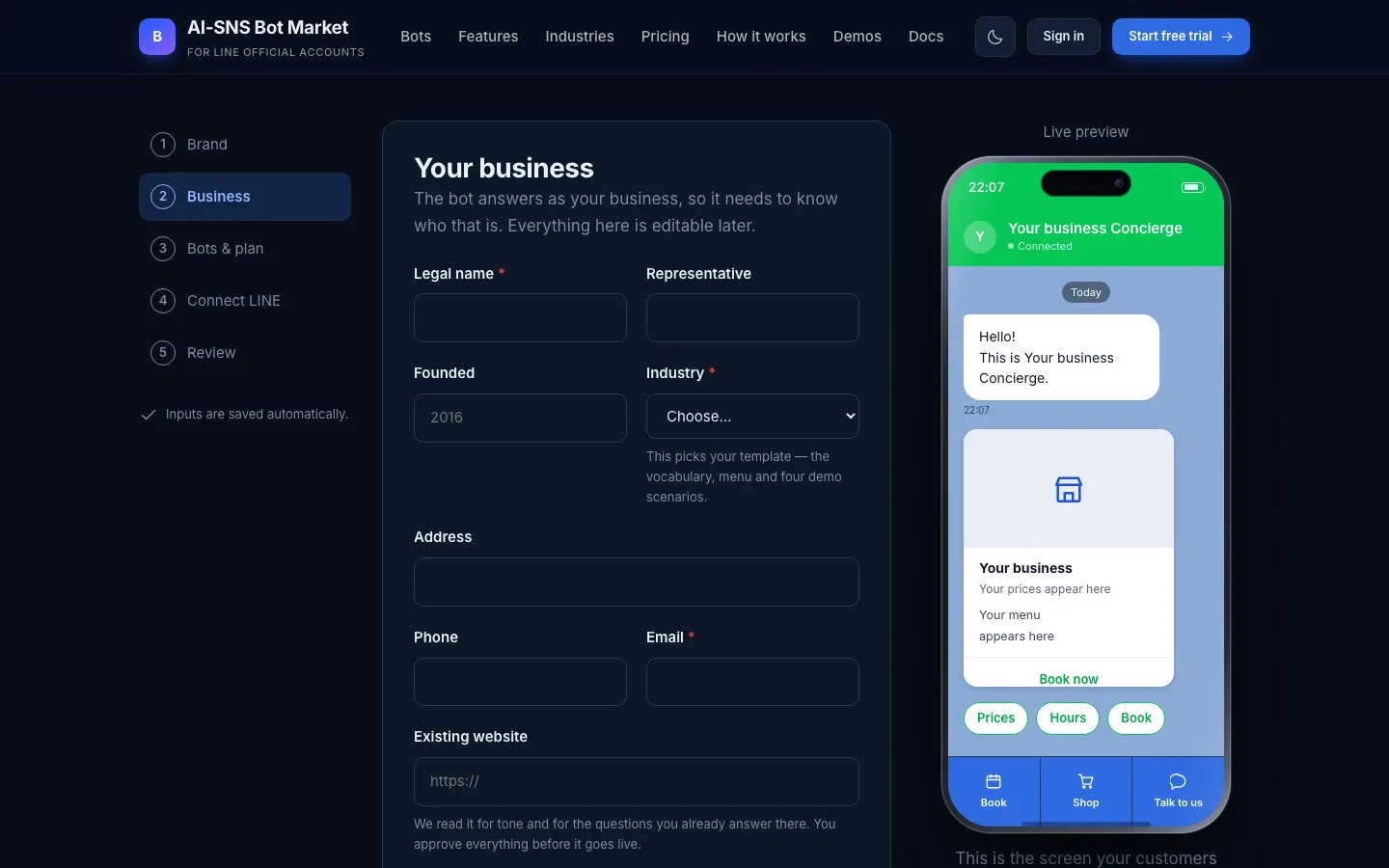
Legal name, address, hours, and a note about what you want the bot to achieve. Then pick an industry template and the bots you want. The template is the part that saves the day: it arrives already speaking your trade, with the right nouns, a plausible menu and realistic prices, so you are correcting a draft rather than filling an empty form.
Pick more than one bot if you want. The monthly estimate updates as you go, and the workspace plan is suggested from the number of bots rather than sold to you.
Connect LINE, once
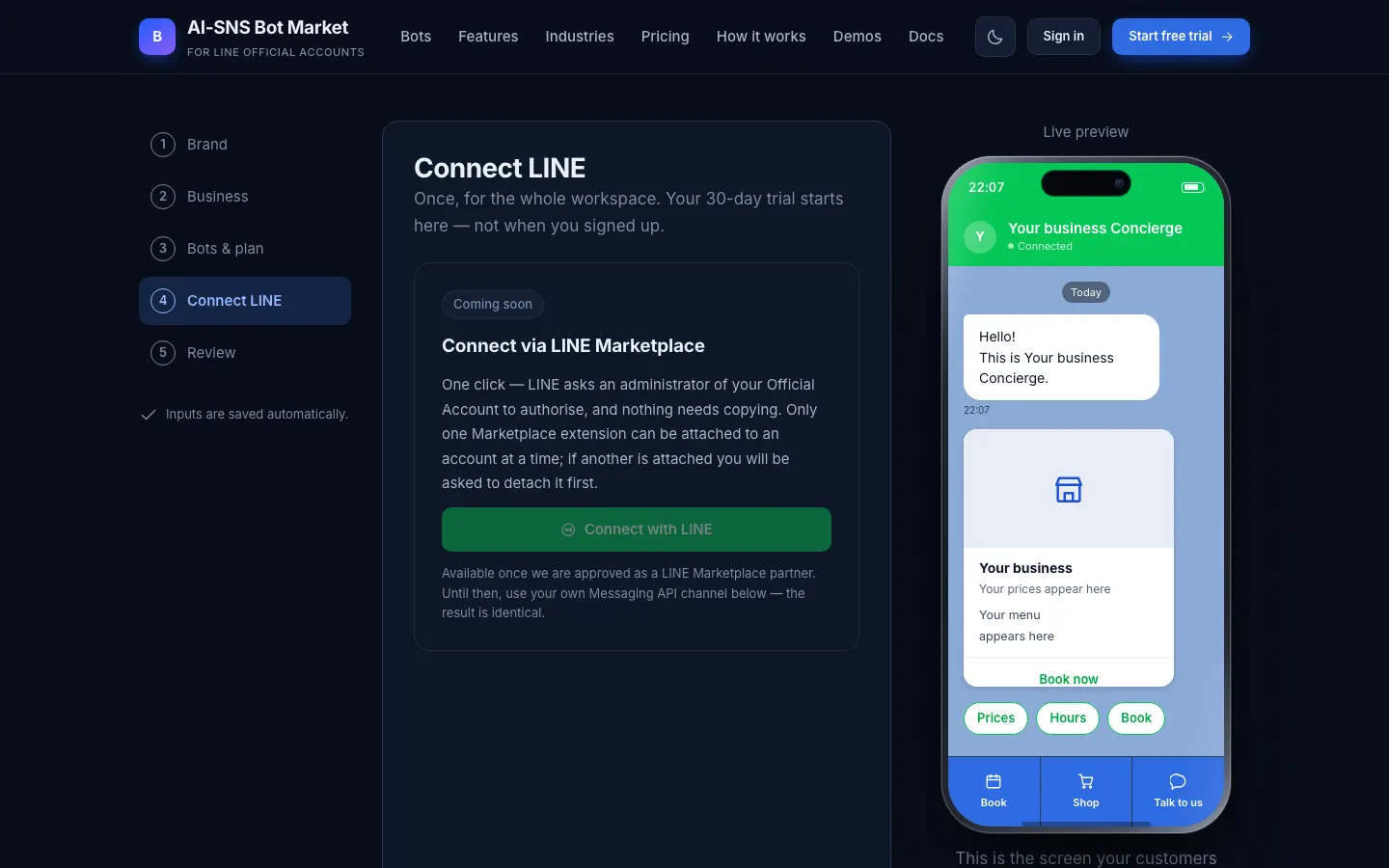
There are two ways, and the wizard shows both. Whichever you choose, the connection belongs to the workspace, not to a bot — so the second and third bots need no connection step at all.
You can also skip this and do it later from the dashboard. Your free trial does not start until you connect, so skipping costs you nothing.
Build, test, publish
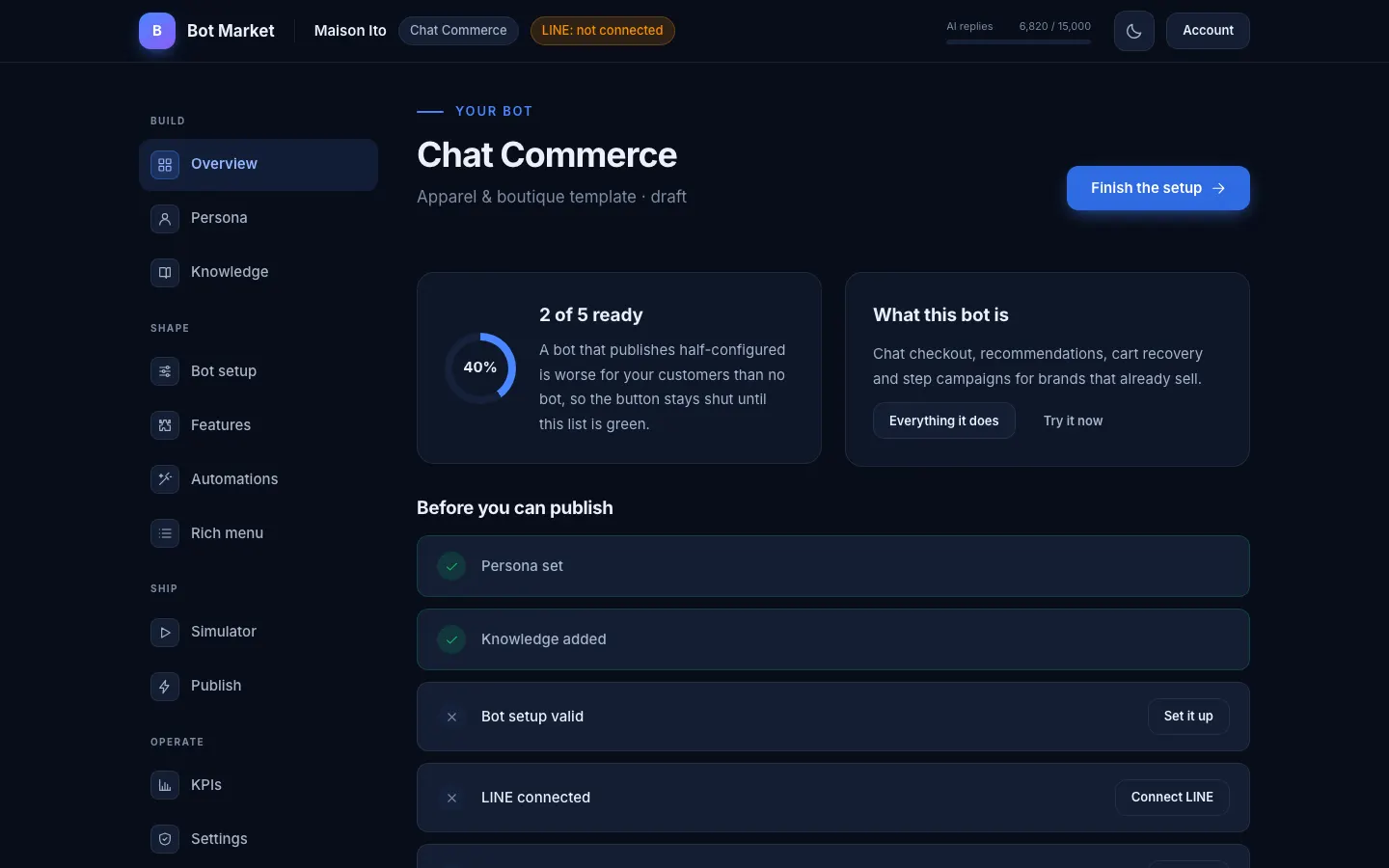
The builder has a panel per bot — staff and menus for a salon, products and shipping for a shop, a flow editor for a quiz. Beside it sits the simulator: the same demo frame you played on this site, now driven by your data, so you are testing your real prices and your real staff names.
Publishing is gated on a checklist: persona set, some knowledge indexed, panel valid, LINE connected, rich menu composed. It refuses until those are true, because a bot that publishes half-configured is worse for your customers than no bot.
The two ways to connect LINE
Mode B works today. Mode A needs LINE to approve us as a Marketplace partner first — a corporate application, not a code change — so the wizard shows it honestly as coming soon rather than pretending.
One click. LINE asks the account administrator to authorise, and we are attached as the extension. Nothing to copy, nothing to paste.
The catch: a LINE Official Account can have only one Marketplace extension attached at a time. If another one is already attached, it has to be detached first — the wizard checks and tells you.
You create a Messaging API channel in the LINE Developers console and paste three values: Channel ID, Channel secret, and a Channel access token. We show you the webhook URL to paste back, and verify it while you watch.
Three settings must be right on the Official Account, and the wizard shows them as a checklist: Use webhook: ON, Auto-response messages: OFF, and greeting messages left to the bot.
Your secrets are submitted once over HTTPS and never come back to a browser — the status view shows masked values only.
What happens when you press publish
- The rich menu image is rendered in your brand colours and uploaded to LINE, with one cell per enabled bot plus Talk to us.
- The webhook goes live, so messages to your Official Account reach the engine.
- Your greeting message is set, so a new friend is met by the bot rather than silence.
- You get a QR code for your own account and a send yourself a test message button — use it before you tell anyone else.
Unpublishing is one click and reverses all of it. Every configuration save is kept, so you can see what changed and when.